




With the release of another Marvel character themed table for Pinball FX 2, Zen Studios has brought us another amazing table to their pinball simulator. This time Captain America gets the royal treatment with a World War II themed table that doesn't disappoint. Every detail of the table is well done and screams Captain America. Bright colors and array of different lights, bumpers, and spinners all animate to bring the table alive.
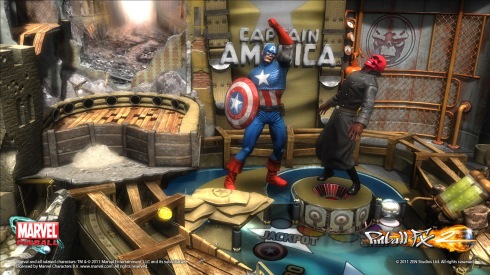
You'll see Cap standing guard over the table and the villains coming and going as necessary. Voice work and animations are solid and the missions available are extremely varied. Whether you are searching for Bucky and the Howling Commandoes or facing off against Red Skull and Baron Zemo, the missions are well thought out and just challenging enough not to frustrate.
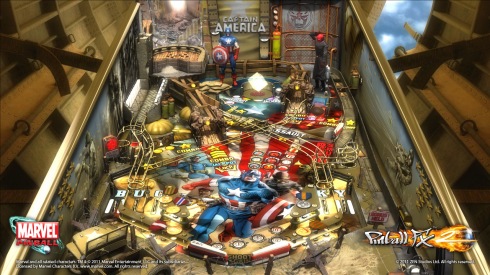
If you've been waiting for a great Marvel themed table to get in to Pinball FX 2, this one is the best of the bunch thus far. Impressive graphics, varied missions, and more than enough is offered to keep you coming back for more. At a very reasonable 240 Microsoft Points or $2.49 on PS3 ($9.99 for Pinball FX 2 is required as well); this table is more than worth it.

Recommended Comments
Please sign in to comment
You will be able to leave a comment after signing in
Sign In Now