




Skip to content
View in the app

A better way to browse. Learn more.

Gamercide

A full-screen app on your home screen with push notifications, badges and more.

To install this app on iOS and iPadOS
  1. Tap the Share icon in Safari
  2. Scroll the menu and tap Add to Home Screen.
  3. Tap Add in the top-right corner.
To install this app on Android
  1. Tap the 3-dot menu (⋮) in the top-right corner of the browser.
  2. Tap Add to Home screen or Install app.
  3. Confirm by tapping Install.
Welcome back to Gamercide!

Call of Duty: Ghosts on PC Will Take up 50 GB

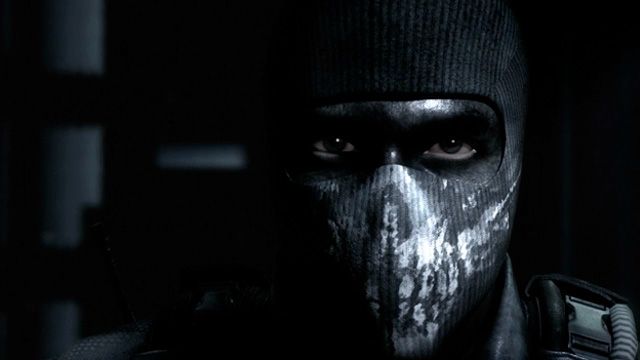
  • Nvidia released the specs for Call of Duty: Ghosts on the PC and surprisingly the game is going to be massive, literally.
    bf11c1ec-2afe-402b-8dae-452c2fd8e2f8_zpse84ac26a.jpg

If you are planning on picking up the next entry into Call of Duty series; Call of Duty: Ghosts plan on making space on your PC if you are lacking in storage space. Nvidia claims that it will take up 50 GB on your hard drive and you will also need 6 GB of RAM in order to play at minimum specifications.

Minimum System Requirements

OS: Windows 7 64-Bit / Windows 8 64-Bit

CPU: Intel Core 2 Duo E8200 2.66 GHZ / AMD Phenom X3 8750 2.4 GHZ or better

RAM: 6 GB RAM

HDD: 50 GB HD space

Video: NVIDIA GeForce GTX 550 Ti / ATI Radeon HD 5870 or better

Sound: DirectX Compatible Sound Card

DirectX: 11

Internet: Broadband connection and service required for Multiplayer Connectivity. Internet connection required for activation.

Recommended System Requirements

Video: NVIDIA GeForce GTX 780

Eurogamer cites that a possible reason for the increased need for storage on the PC may be due to the textures in Call of Duty: Ghosts and that Nvidia has been pushing for a "flawless" 4K experience according to Nvidia's Andrew Burnes.

"Of course, to play games at 4K you're going to need a top-end system, one that features SLI GeForce GTX 770s, GTX 780s, or GTX SLI TITANs, Only these configurations have the performance to power games like Assassin's Creed 4: Black Flag, Batman: Arkham Origins, Call of Duty: Ghosts, and Watch_Dogs to their maximum potential.

To ensure a flawless 4K experience Nvidia is working closely with the developers of each game, and in addition to supporting 4K, we are working hand-in-hand with the developers to integrate exclusive, game-changing Nvidia technologies like PhysX, TXAA, and HBAO."

via Eurogamer

User Feedback

Recommended Comments

PaNfOoT

Member+

6 gigs of RAM and that much space required...yet that old CPU? What?

Sheck

Members

What are they trying to do build a minecraft server ? get outta here lol

Skylark95

Member+

50 GB? Convert that to MB and that is how much the game will cost after all the DLC...

vectordream

Member+

Yikes and all these companies want us to go all digital eventually but not with file sizes like that.

PaNfOoT

Member+

Yikes and all these companies want us to go all digital eventually but not with file sizes like that.

Yeah, especially with a lot of internet providers starting to put bandwidth caps on all their plans.

vectordream

Member+

Yeah, especially with a lot of internet providers starting to put bandwidth caps on all their plans.

Exactly. I have already seen my ISP listing caps that they will be enforcing soon. The ISPs are gonna start nickel and diming us just like the cell phone companies are doing. Contract agreements, bandwidth caps etc.

Skylark95

Member+

Every Steam sale my ISP must hate me. I probably use more internet than half the tenants in my building combined.  I at the moment have no data caps in place *knocks on wood*

Please sign in to comment

You will be able to leave a comment after signing in

Sign In Now

Members

No members to show

Member Statistics

  • 523 Total Members
  • 1640 Most Online
  • iceesnowman Newest Member ·

Account

Navigation

Search

Search

Configure browser push notifications

Chrome (Android)
  1. Tap the lock icon next to the address bar.
  2. Tap Permissions → Notifications.
  3. Adjust your preference.
Chrome (Desktop)
  1. Click the padlock icon in the address bar.
  2. Select Site settings.
  3. Find Notifications and adjust your preference.